Welcome, Hunter! 👋 Enjoy 50% OFF annual plans with code PRODUCTHUNT — limited time ⏳
50% OFF annual plans — code PRODUCTHUNT
BLACK FRIDAY SALE 50% OFF +1 FREE MONTH LIMITED TIME DEAL Grab The Deal
50% OFF +1 FREE MONTH Grab The Deal

Wix Popup Banner App
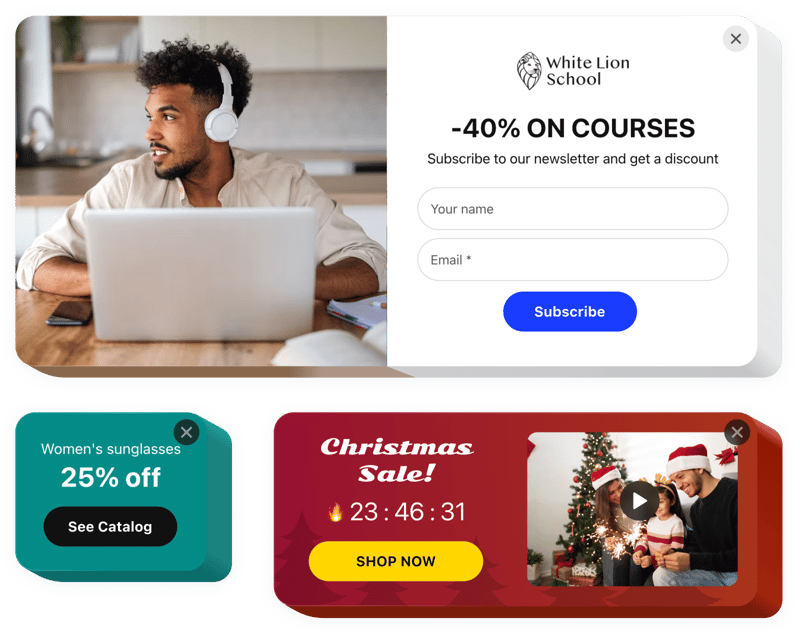
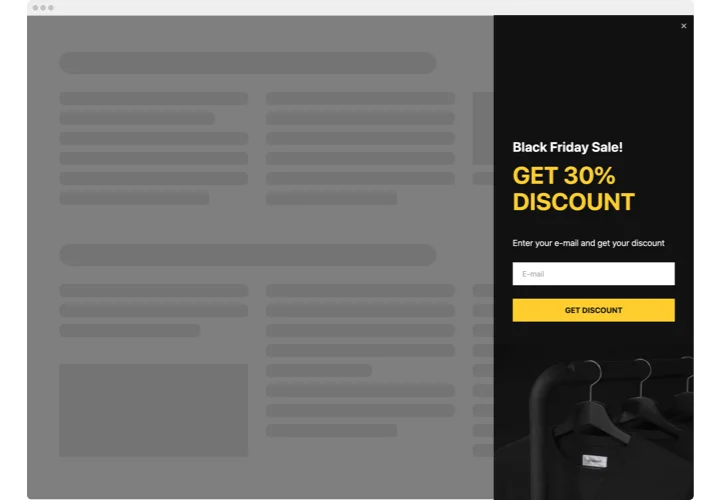
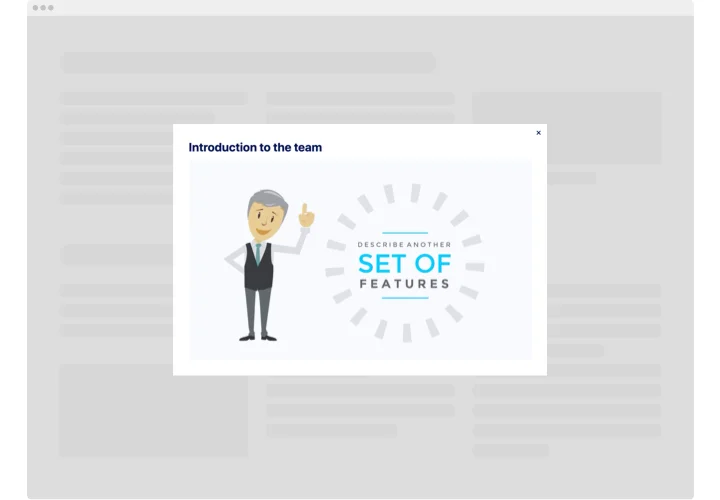
Create promotional popups to capture leads, highlight offers, and guide user actions at the perfect moment for maximum conversion.
4.8 rating
10,000+ reviews
Free plan available
AI-Powered
Create Widget for Free
No credit card needed
Wix Popup Banner App

Create your Popup app

Configure your Popup and add it to your Wix website for free!

Screenshots

Wix Popup Banner App
1 / 6

Why People Love Elfsight

Popups can do more than grab attention. They let you reach visitors at the right moment—announce a sale, collect emails, or share a quick update. The Wix Popup widget is made so anyone can use it; you don’t need coding experience. Set it up, tweak the look, and test in minutes.

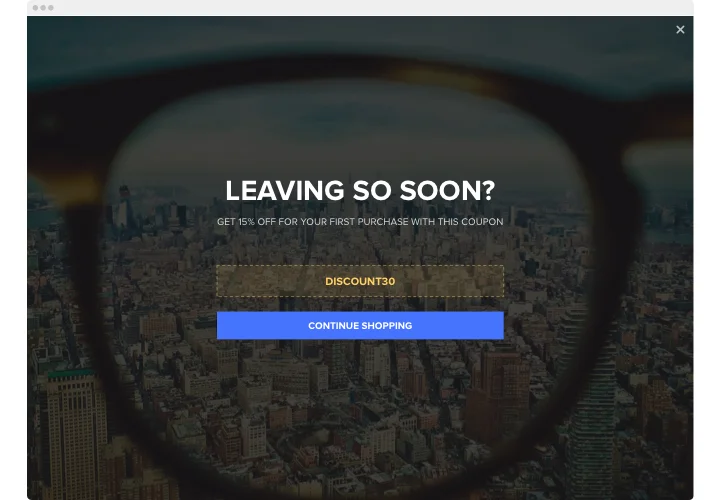
Imagine a visitor about to leave your homepage and a subtle banner appears with a limited-time discount. That nudge often turns hesitation into a purchase. With Elfsight, creating that nudge is more like flipping a switch than running a development project.

Did you know? Sumo found that popups can increase email list growth by more than 1,300% when designed well.

Try one targeted message and see how it changes your conversions—small experiments often reveal the biggest wins.

Key Features of the Wix Popup

Built for day-to-day use, this widget gives you control without complexity. Here’s what you’ll find helpful:

  • Custom design: Change colors, fonts, and layout so the popup fits your look and feels intentional.
  • Multiple formats: Use banners, messages, or a wix popup form depending on whether you want to inform or collect leads.
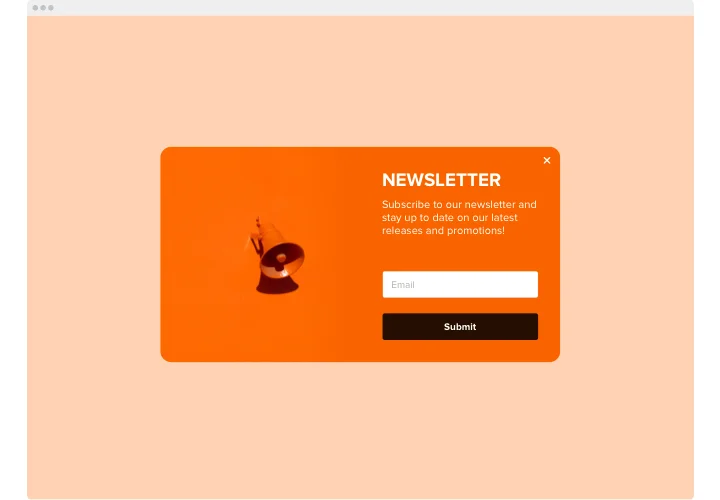
  • Trigger options: Show popups on page load, after a delay, on scroll, or on exit intent—pick what suits the moment.
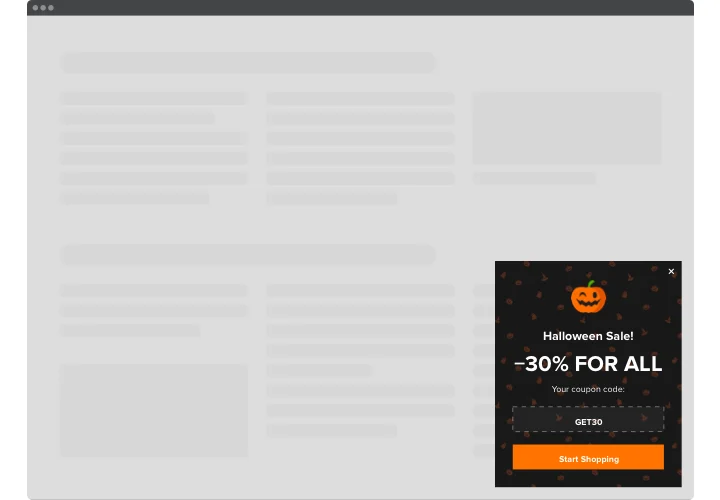
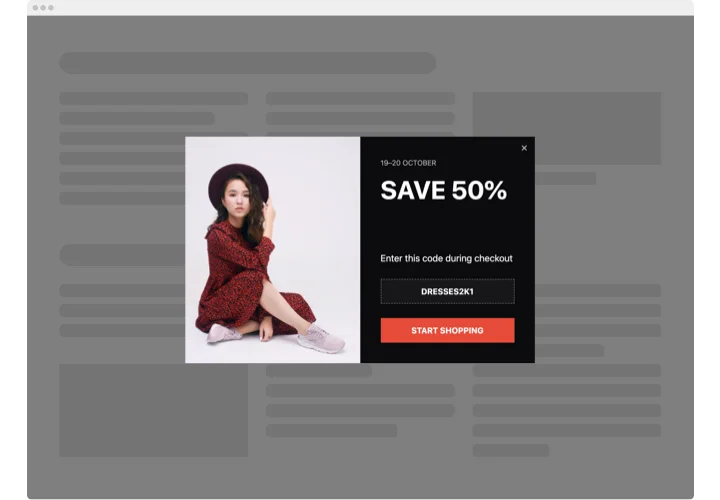
  • Targeting rules: Display different messages to new visitors, return customers, or on specific pages to keep things relevant.
  • Mobile-ready: Popups adapt to phones and tablets automatically, so you don’t have to manage multiple versions.

Open the live editor and try all features for free—no sign-up required.

Adding Popup to Wix: Two Easy Ways

There are two ways to add a popup to Wix. Neither takes long, and you don’t need to touch a single line of code. Take a look:

1. Inline Embedding (one specific page)

Use this if the popup belongs in a particular spot — say, under a product, or at the end of a blog post.

  1. Open the Elfsight editor and pick a template you like.
  2. Change the content and design until it feels right. You’ll see a live preview as you work.
  3. Click “Add to website for free” and copy the short code snippet.
  4. Go to your Wix page, add an “Embed Code” block, and paste the snippet right where you want it.
  5. Save, publish, and check the page to make sure it shows up correctly.

2. Floating Embedding (across the whole site)

This option is great for sticky bars, slide-ins, or anything you want to appear everywhere — like a sale countdown or a newsletter prompt.

  1. Pick a floating layout in the editor — for example, a corner popup or a bottom banner.
  2. Set your display rules: when it should appear, how often, and on which pages.
  3. Generate the global code snippet.
  4. In Wix, go to Settings → Custom Code, paste the snippet into the right section, and set it to apply site-wide.
  5. Publish your changes and open a few pages to double-check it’s working as planned.

If you’d like a walkthrough with pictures, here’s a step-by-step guide.

Do I need a Wix Premium plan to embed the Popup app?

Yes, Wix’s Free plan doesn’t support external code, so you need a Premium plan to embed the app on your live Wix website.

Is Elfsight compatible with Wix Editor, Editor X, and Wix Studio?

Yes, the Popup app is fully compatible with the classic Wix Editor, Editor X, and the new Wix Studio. You can easily embed it in any Wix version.

What trigger options does the Popup support?

Elfsight supports multiple trigger types, including on page load, after a time delay, on scroll by percentage, on scroll to a specific element, on click of an element, and on exit intent.

Does exit-intent work on mobile devices?

No, exit-intent works only on desktop devices. It relies on mouse movement, which isn’t available on smartphones or tablets.

Can I use multiple triggers for one popup?

Yes, you can enable multiple triggers for a single popup. The first trigger that activates will display the popup, and any subsequent triggers will be ignored once it’s shown.

Can I set the Popup to show only once to each user?

Yes, by enabling the “Show once” option, the popup will appear only once per unique visitor and won’t show again on future visits or page views.

Can I schedule when popups appear?

Yes, the Popup includes scheduling options that let you define start and end dates and times. The popup will only appear on your Wix website during the selected period.

Can I add videos or images to the Popup?

Yes, you can add rich media to the popup, including images and videos from YouTube or Vimeo. Videos can be embedded using the built-in Video element or an iframe in an HTML block.

Does the Popup support RTL languages (Arabic, Hebrew, etc.)?

Yes, the Popup supports right-to-left (RTL) languages like Arabic and Hebrew. You may add a simple CSS rule such as `direction: rtl;` for optimal alignment, but RTL text displays correctly by default.

Does Elfsight support lead-capture forms?

Yes, the Popup app includes a built-in form element, allowing you to collect user input such as email sign-ups or feedback directly within the popup.

Pricing

Start for free. Pay as you grow.
Elfsight Apps
100% compatible with your website
from $0
#1 Way to Add a Popup on Wix
20+ Built-in Templates
100+ Awesome Features
Ready for Any Event or Sale
Saves your Money and Time
Black Friday Sale
50% OFF
+1 FREE MONTH
The Biggest Sale of the Year. Don't Miss Out!
Grab The Deal